How to Use a Savings Calculator: Step-by-Step Guide (2027)
A savings calculator tells you what your money could turn into. You type in a few numbers, press one button, and see a result. It sounds simple, yet many people are not sure what each box means. That is normal, and this guide will fix it.
Here you will learn how to use a savings calculator from the first box to the last result. We use screenshots of our free Savings Calculator, plain words and one worked example you can check by hand. No finance background is needed.
All rates in this guide are examples. Your bank may pay more or less, and rates can change. Treat every result as an estimate, not a promise.
To use a savings calculator, enter your starting balance, how much you will add and how often, the yearly interest rate, and how many years you will save. Press Calculate. The big number is your estimated future balance. The cards under it show how much you put in and how much interest you earned.
- A savings calculator needs four main facts: what you have now, what you will add, the rate, and the time.
- In our example, $5,000 plus $500 a month at 4.5% for 10 years grows to about $83,434.
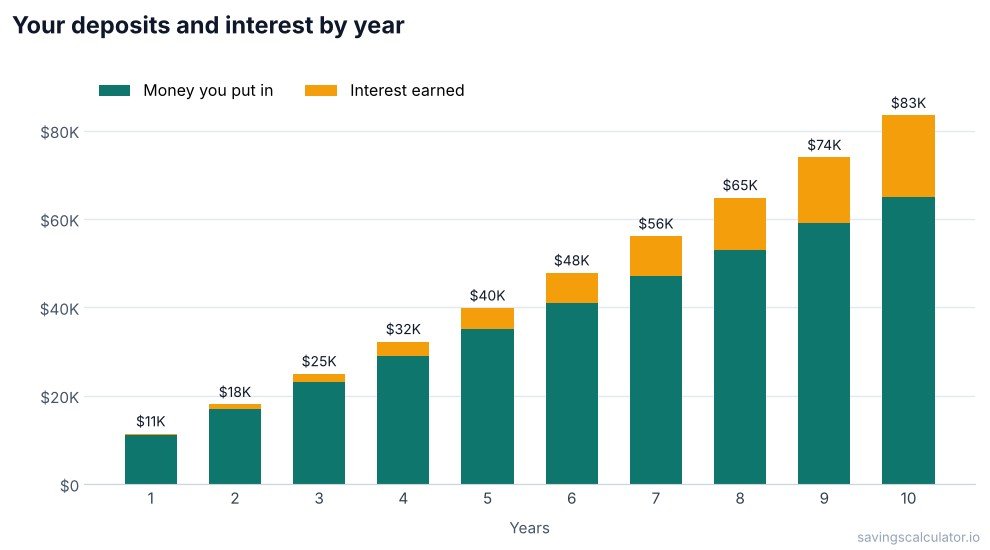
- Of that, $65,000 is your own money and about $18,434 is interest.
- Change only one box at a time so you can see what each choice does.
- Adding $100 more each month adds about $15,120 in 10 years. That beats a 1-point rate rise in this example.
- A calculator gives an estimate. Real rates, fees and taxes can change the result.
What does a savings calculator do?
A savings calculator does the hard math for you. It takes the money you have today, adds your regular deposits, and applies interest over time. Then it shows you where you could end up.
You could do this by hand, but it takes many steps. Interest is added on top of interest, so the numbers grow in a curve and not a straight line. A calculator handles all of that in less than a second.
What questions can it answer?
- How much will I have in 5, 10 or 20 years?
- How much of that is my own money, and how much is interest?
- What happens if I save $50 more each month?
- What happens if my rate is 1% lower or higher?
It does not tell you which bank to use. It also does not know your taxes or fees. It only does the math on the numbers you give it. That is why good inputs matter.
If you are new to the idea of interest earning interest, read our guide on how compound interest works first. It takes five minutes and makes every result easier to understand.
What do you need before you start?
Gather four facts before you open the calculator. You can use rough numbers. You can always change them later.
- Your starting balance. This is the money you already have saved. Use 0 if you are starting fresh.
- Your regular deposit. This is the amount you plan to add each week or each month.
- Your interest rate. Look at your savings account page or app. If you do not have an account yet, try 3% or 4% as an example.
- Your time frame. This is how many years you will keep saving.
Tip: Not sure what deposit is realistic? Look at last month in your bank app. Pick an amount you could add even in a tight month. You can raise it later. Our guide on how to start saving money helps you pick a first number.
You can also work out how much of your own money will go in. The calculator does this for you, but the idea is simple.
One more thing: be honest with yourself. A plan with $1,000 a month looks great on screen, but it only helps if you can keep it up. A smaller plan you actually follow beats a big plan you drop.
What does each box in the calculator mean?
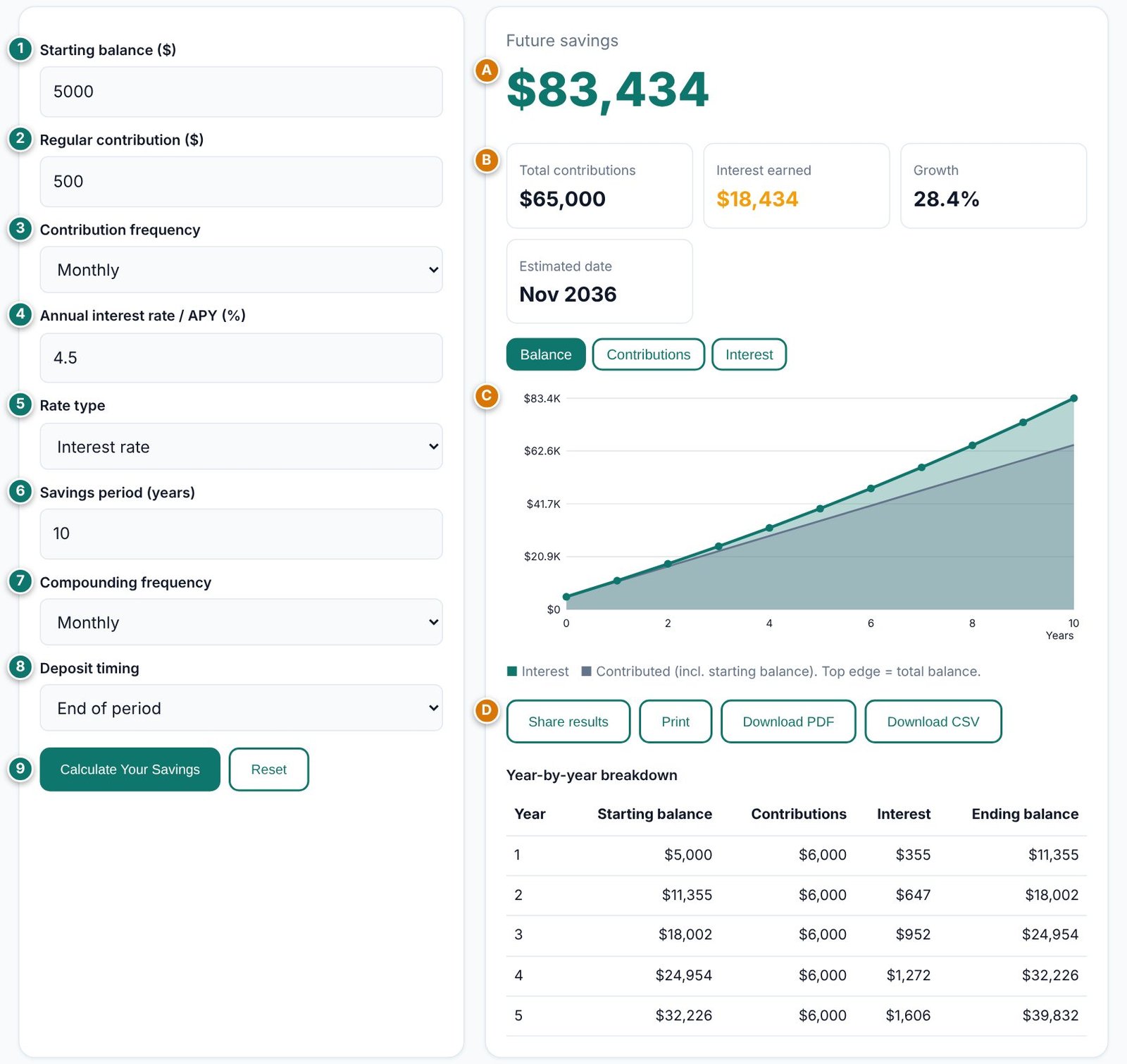
The picture below is our Savings Calculator with example numbers. The teal numbers 1 to 8 are the boxes you fill in. The number 9 is the Calculate button. The orange letters A to D are the results you read.
The eight input boxes
- 1Starting balance. The money you already have saved. Type 0 if you are starting from scratch.
- 2Regular contribution. How much you add each time you save.
- 3Contribution frequency. How often you add it: weekly, every two weeks, monthly, quarterly or yearly.
- 4Annual interest rate / APY. The yearly rate your account pays.
- 5Rate type. Choose Interest rate for a plain rate. Choose APY if your bank shows APY.
- 6Savings period. How many years you plan to keep saving.
- 7Compounding frequency. How often interest is added to your balance. Daily or monthly is common.
- 8Deposit timing. End of period means you deposit after interest is added. Start of period means before.
Box 5 trips up many people, so here is the short version. A plain interest rate ignores compounding. APY already includes it. If your bank shows an APY, pick APY and the calculator converts it for you. Our guide on what APY means explains the difference in detail.
Box 8 matters less than people think. If you deposit at the end of each month, leave it on End of period. In our example, switching to the start of each period adds only about $283 over 10 years.
How do you use the savings calculator step by step?
Follow these steps in order. We use the same numbers as the screenshot, so you can check that your screen matches ours.
- Open the calculator. Go to the Savings Calculator. It already shows example numbers.
- Type your starting balance. Enter 5000 in box 1.
- Type your regular deposit. Enter 500 in box 2 and choose Monthly in box 3.
- Enter the rate. Type 4.5 in box 4. Leave Rate type on Interest rate.
- Set the time. Enter 10 in box 6.
- Pick compounding and timing. Choose Monthly in box 7 and End of period in box 8.
- Press Calculate Your Savings. The results on the right update right away.
Step 1: You begin with $5,000.
Step 2: You add $500 for 120 months. That is $500 × 120 = $60,000.
Step 3: Your total deposits are $5,000 + $60,000 = $65,000.
Step 4: The calculator adds interest every month. The balance after 10 years is about $83,434.
Step 5: Interest earned is $83,434 − $65,000 = $18,434.
Result: You could have about $83,434. Of that, $18,434 is interest, which is about 28.4% on top of what you put in.
Now you have a baseline. Everything else in this guide is about changing one number and seeing what moves. If you want the formula behind these steps, see how to calculate savings growth.
How do you read the results?
After you press Calculate, look at the right side of the screen. Each part answers a different question.
- AFuture savings. The big number. It is your estimated balance at the end of the time you chose.
- BResult cards. Total contributions, interest earned and growth. Together they show where the money came from.
- CGrowth chart. Tap Balance, Contributions or Interest to switch views. Below it is a table with one row for each year.
- DShare, Print, PDF, CSV. Save your result or send it to someone. The CSV file opens in a spreadsheet.
Why the chart shows two layers
The gray layer is the money you put in. The teal layer on top is interest. In the early years the teal layer is thin. In the later years it gets thicker, because interest now earns its own interest. That is compounding at work.
Use the year-by-year table
The table under the chart lists each year. It shows your starting balance, the deposits for that year, the interest and the ending balance. Here are a few rows from our example.
| Year | Ending balance | Total interest so far |
|---|---|---|
| 1 | $11,355 | $355 |
| 3 | $24,954 | $1,954 |
| 5 | $39,832 | $4,832 |
| 8 | $64,810 | $11,810 |
| 10 | $83,434 | $18,434 |
Look at the interest column. In year 1 you earn $355. By year 10 you earn about $3,521 in that single year. The deposits stay the same, but the interest grows every year.
What is the math behind the calculator?
You do not need to know the math to use the tool. Still, seeing it once builds trust. The calculator repeats one simple rule for every period.
Step 1: The monthly rate is 0.045 ÷ 12 = 0.00375.
Step 2: Month 1: $5,000 × 1.00375 = $5,018.75. Add the $500 deposit to get $5,518.75.
Step 3: Month 2: $5,518.75 × 1.00375 = about $5,539.45. Add $500 to get $6,039.45.
Result: After two months the balance is about $6,039. The calculator repeats this step 120 times to reach $83,434.
Notice that interest in month 2 is calculated on $5,518.75, not on $5,000. That is the compounding effect. The more you save, the more interest you earn on the next round.
Careful: The calculator ignores taxes, fees and rate changes. Many savings account rates move over time. If your rate drops, the real result will be lower than the estimate.
How can you test "what if" plans?
This is where a savings calculator becomes powerful. Start from your baseline. Then change one box and press Calculate again. Write down the new result.
Here is what happens when we change one thing at a time in our example.
| What you change | New result after 10 years | Difference |
|---|---|---|
| Save $600 a month instead of $500 | $98,554 | +$15,120 |
| Rate 5.5% instead of 4.5% | $88,409 | +$4,975 |
| Rate 3.5% instead of 4.5% | $78,808 | −$4,626 |
| Compound daily instead of monthly | $83,473 | +$39 |
| Deposit at start of month | $83,717 | +$283 |
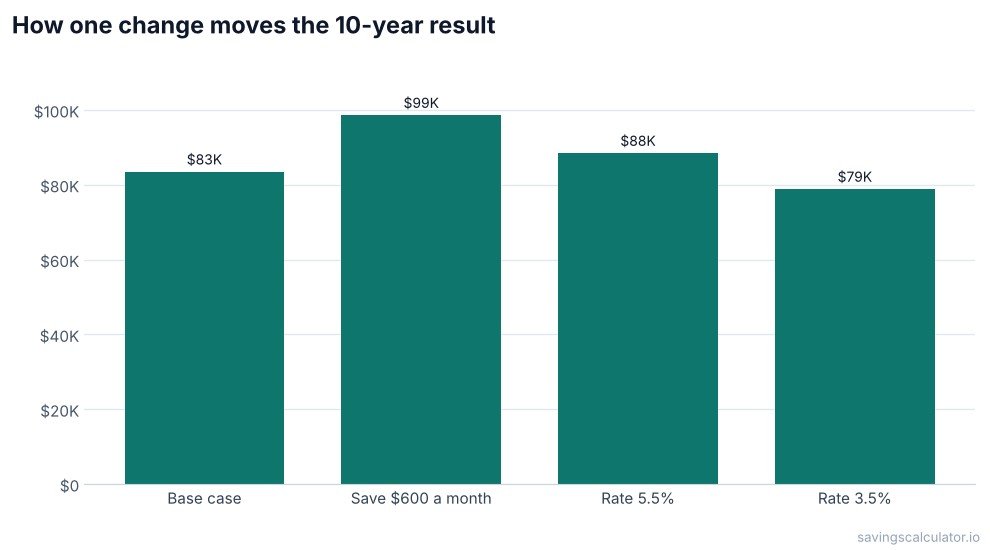
The lesson is clear. In this example, saving $100 more each month matters far more than a small change in the compounding schedule. You control your deposit. You do not control the rate. So focus on what you can change.
Use the Compare two scenarios panel
You do not have to type and retype. Press Compare two scenarios under the results. Scenario A is your current numbers. Change any value for Scenario B. The table shows the two results side by side with a Difference column.
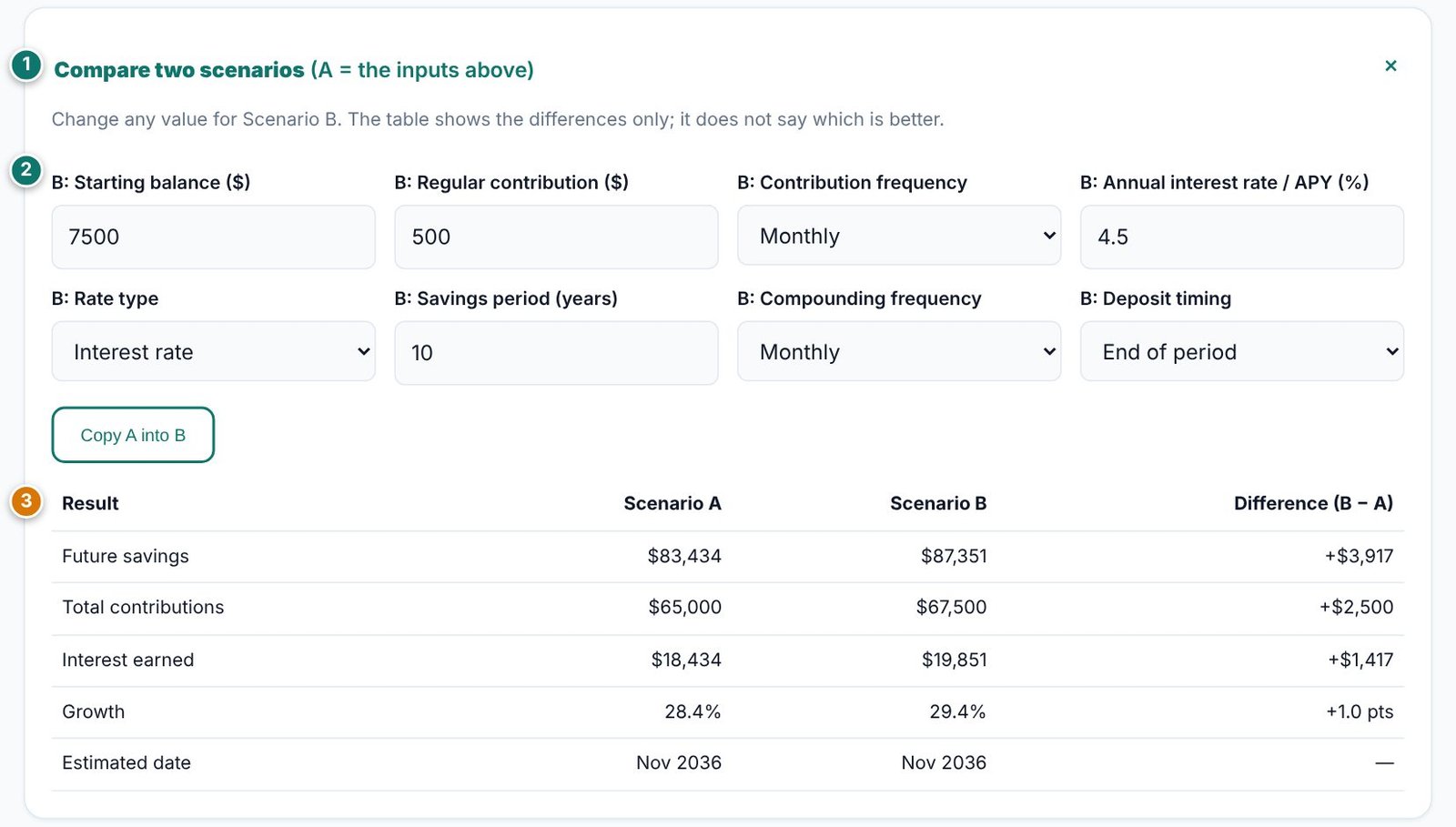
Tip: Change only one value in Scenario B. If you change three things at once, you will not know which one caused the difference. We cover this tool in more depth in our guide on how to compare two savings plans.
What mistakes should you avoid?
A calculator is only as good as the numbers you give it. These are the mistakes we see most often.
- Using an APY as a plain rate. If your bank shows an APY, set Rate type to APY. Otherwise the result is slightly off.
- Picking a rate that is too high. A very high rate makes the plan look better than it is. Use a rate close to what your account really pays.
- Mixing weekly and monthly. If you save $100 a week, choose Weekly in box 3. Do not type $100 and leave it on Monthly.
- Forgetting your starting balance. Money you already have counts. Add it in box 1.
- Ignoring inflation. $83,434 in 10 years will buy less than $83,434 today. Test this with our Inflation Savings Calculator.
- Treating the result as a promise. It is an estimate. Rates and your own plans can change.
Step 1: Dan saves $100 every week. He starts with $5,000 and uses a 4.5% rate for 10 years.
Step 2: By mistake he leaves box 3 on Monthly. The calculator thinks he saves $100 once a month, so it shows about $22,955.
Step 3: He fixes box 3 to Weekly. Now the calculator counts 520 deposits of $100. The result is about $73,449.
Result: The same $100 gives two very different answers: $22,955 with the wrong setting and $73,449 with the right one. Always check box 3.
If you keep these points in mind, your results will be much more useful. Revisit the calculator every few months and update the numbers. A plan that is reviewed is a plan that is followed.
What should you do next?
Now that you know how to use a savings calculator, put it to work. Here is a simple path.
- Open the Savings Calculator and enter your own numbers.
- Write down the result. This is your baseline.
- Change your deposit by $50 and see what happens.
- Pick a monthly amount you can keep up, then set up an automatic transfer.
- Set a reminder to check your plan every three months.
If you have a target in mind, such as $10,000 for a trip or a car, our guide to setting a savings goal shows how to turn it into a monthly amount. If you are deciding how much to save, see how much you should save each month.
Put your own numbers into our free Savings Calculator. No signup. Works on any phone.
Frequently asked questions
How do I use a savings calculator?
Enter your starting balance, your regular deposit and how often you make it, the yearly interest rate and the number of years. Press Calculate. The main number is your estimated balance. The cards show your deposits and the interest you earned.
What interest rate should I enter?
Use the rate on your savings account. If you do not have one yet, try an example such as 3% or 4% and see how the result changes. If your bank shows an APY, set Rate type to APY. Rates can change, so check them often.
What is the difference between interest rate and APY?
An interest rate is the plain yearly rate. APY includes the effect of compounding, so it is a little higher. For example, 4.5% compounded monthly is an APY of about 4.59%. Read our guide to APY for more.
Is a savings calculator accurate?
It is accurate for the math it does, but the result is only an estimate. It cannot know future rate changes, fees or taxes. Use it to compare plans and set goals, not as a promise of what you will have.
How often should I use a savings calculator?
Use it when you start a plan and then every few months. Update your balance, your deposit and the rate. Small checks keep your plan on track and help you decide when to save more.
Should I choose weekly or monthly deposits?
Choose the schedule that matches how you really save. If you move $50 every Friday, choose Weekly and enter 50. If you move money once a month after payday, choose Monthly. The results are close, but matching your real habit is more honest.
Does a savings calculator include taxes?
No. Interest on savings may be taxable depending on where you live and your situation. The calculator shows interest before tax. Check current rules or ask a qualified adviser.
Can I save the results?
Yes. Use the Share, Print, Download PDF or Download CSV buttons under the chart. The CSV file opens in Excel or Google Sheets, so you can keep your own copy and build on it. Many people save a new copy every few months to see their progress.
Please note: This guide is for education only and is not personal financial, tax or legal advice. Numbers in examples are simple estimates, not promises. Rates, fees and rules change, so check with your bank or a qualified adviser before you decide. See our disclaimer.
Free calculators for this guide
Savings Calculator
See how your savings could grow with regular contributions and compound interest.
Calculate Now →Monthly Savings Calculator
Project future savings from a fixed monthly contribution.
Calculate Now →Compound Interest Calculator
Watch principal, contributions and interest build on each other over time.
Calculate Now →